How to Read and Record Yourself with TeleprompterOnline
This walkthrough follows one recording session from start to finish: script in, camera on, text sized, scroll chosen, take recorded and saved. Every button is named the way it appears on screen, so you can keep this page open in a second window and follow along.
What you need
- A current browser on a laptop, desktop, tablet or phone. There is nothing to install and no account to create.
- A script. Rough is fine; you can edit it inside the teleprompter.
- A camera and microphone, if you want to record. Your browser will ask permission the first time.
No tripod or glass rig? Read how to set up a teleprompter without extra hardware before you start.
The quick version
- Paste your script on the home page and press Open prompter.
- Open Settings and switch Camera and Microphone on.
- Open Scroll mode and choose Auto scroll, Word per minute or Scroll time.
- Turn on Notch if you want the text right under your webcam.
- Press Record, read, then press Record again to stop.
The sections below explain each step and the settings worth touching along the way.
Step 1: Get your script in
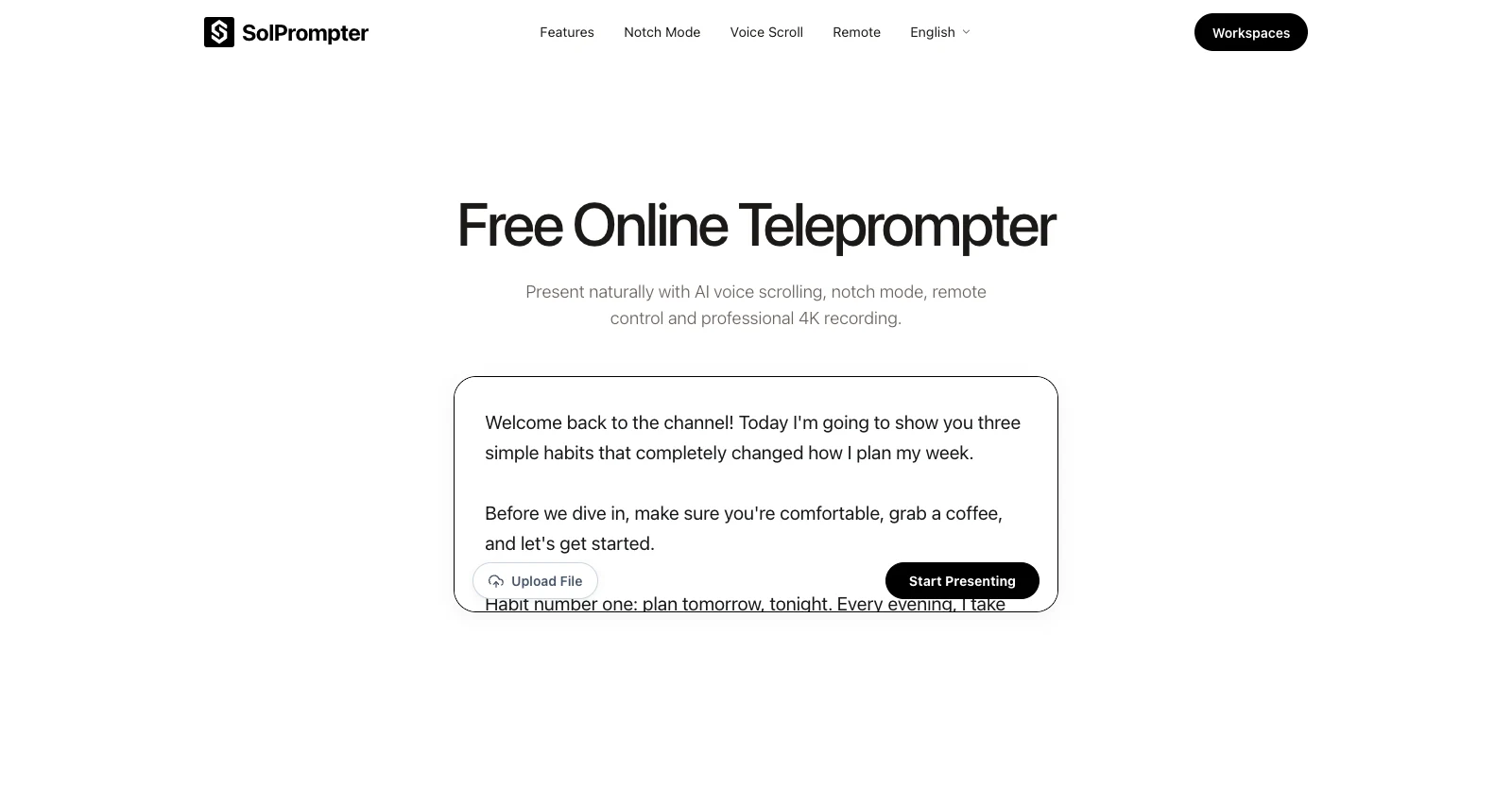
Go to the home page and click into the script box. Paste your text, type it fresh, or press Import file to load a document from your device. Dragging a file onto the page works too.
Imports accept TXT, DOCX and Markdown. When the text looks right, press Open prompter. Your script is saved in this browser automatically, so you can come back to it later.
Writing from scratch? Short sentences read better aloud than long ones. Our guides on writing a teleprompter script and matching word count to video length will save you a few takes.
Step 2: Turn on the camera and check your shot
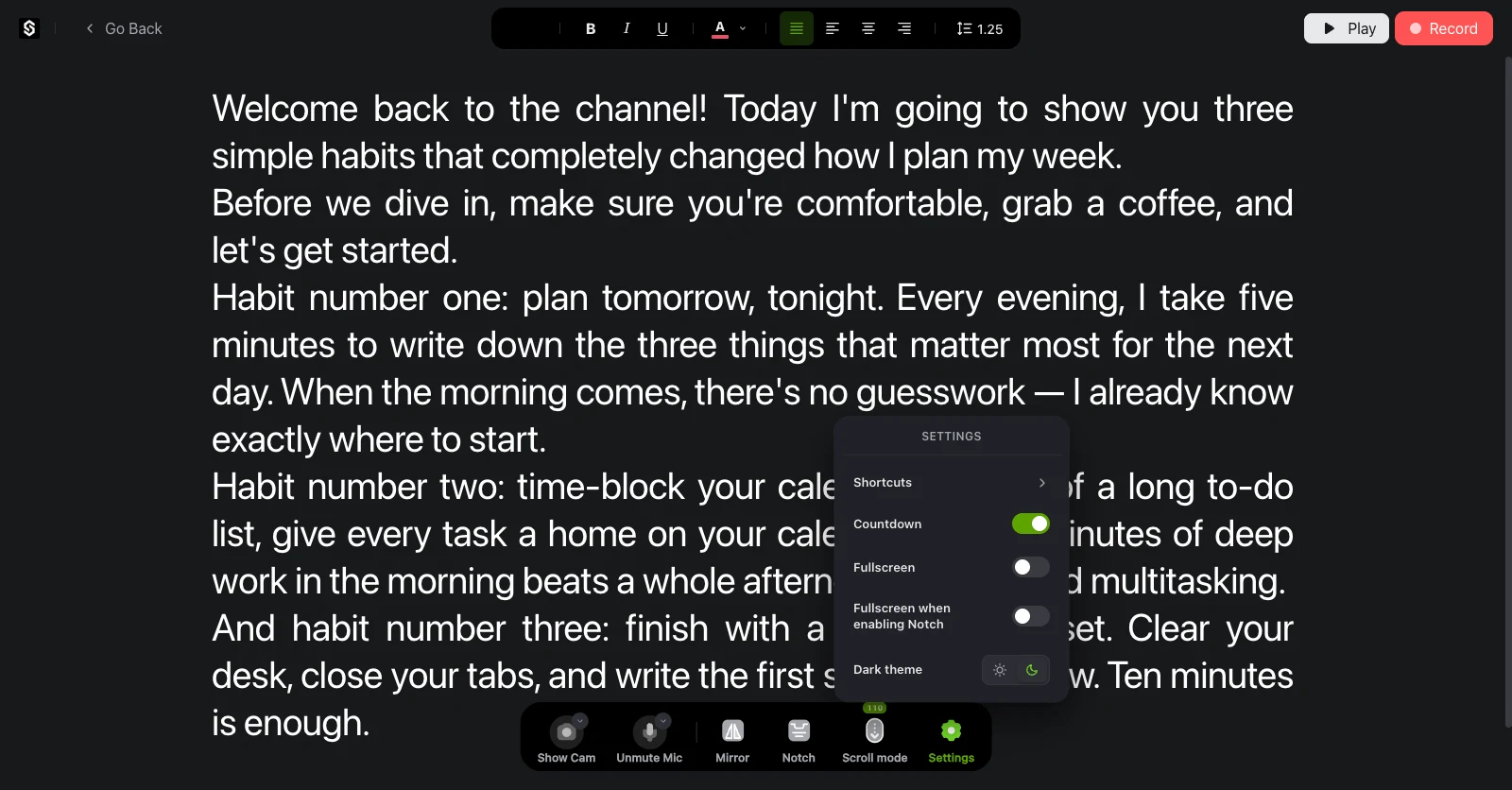
Open Settings from the bottom toolbar. Under Devices & Media, switch Camera and Microphone to On and allow access when the browser asks. A live preview appears behind the script, so you can see your framing while you read.
- Resolution: pick the highest your camera and browser offer. Desktops can record up to 4K where supported; iOS records up to 1080p.
- Countdown: switch it on to get a few seconds to settle before recording starts.
- Fullscreen: hides the browser bars so only the script and preview fill the screen.
Step 3: Size the text so you read it at a glance
The format toolbar runs across the top of the teleprompter. Aim for text you can read without squinting from where you will sit or stand, in lines short enough that your eyes barely travel.
- Font size: presets from 16px to 48px, a very large 250px option, or Custom for any value in between.
- Line height: from 1 to 2. More space between lines makes it easier to keep your place.
- Bold, italic and underline: mark words you want to stress (Ctrl+B, Ctrl+I, Ctrl+U).
- Choose color: highlight cues such as pauses or names in a different color.
- Align left, center, right or justify.
- Layout: shows the Eye line and the two Margin guides. Drag the Eye line to the height of your camera and pull the margins in to narrow the text column.
- Dark theme or light theme: switch under Display & Theme in Settings.
Step 4: Decide how the text moves
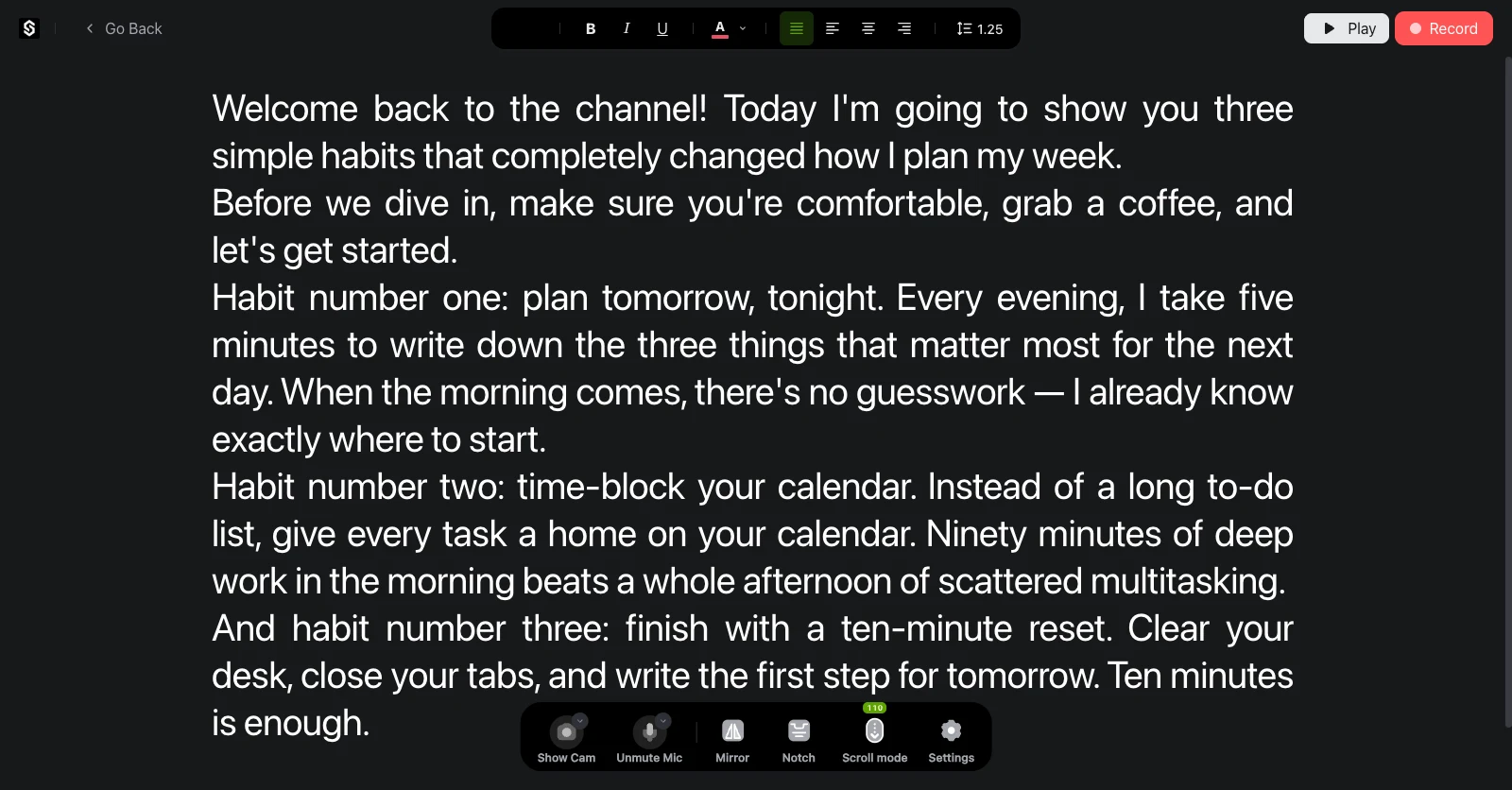
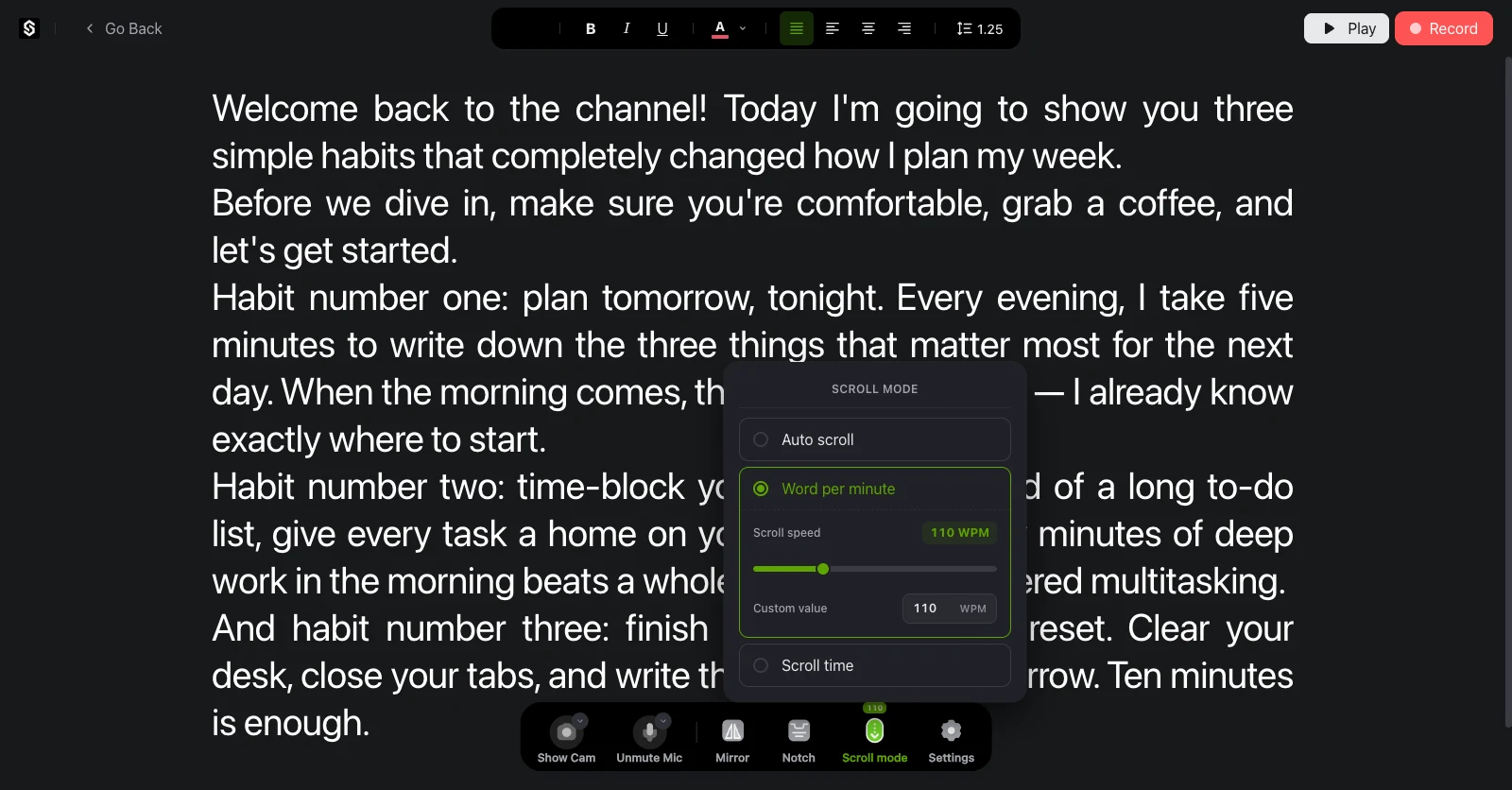
Press Scroll mode in the bottom toolbar. You get three choices, plus the option to scroll by hand.
- Auto scroll: the text moves as you speak. It uses your browser's speech recognition through the microphone, so it slows when you slow and holds when you pause. Depending on the browser, recognition runs on your device or through the browser maker's service.
- Word per minute: a steady, fixed speed. Drag the Scroll speed slider or type a Custom value. The default is 110 WPM.
- Scroll time: enter a Total scroll time in minutes and seconds, and the script is paced to finish right on time. Useful when a video has to hit an exact length.
- By hand: leave scrolling paused and use the up and down arrow keys, or swipe on a touchscreen.
Press Play, or tap Space, to start the text. Press it again to pause, and use To start to jump back to the top. Not sure which mode suits you? Compare them in voice scroll vs. fixed speed.
Step 5: Park the text under your lens with Notch
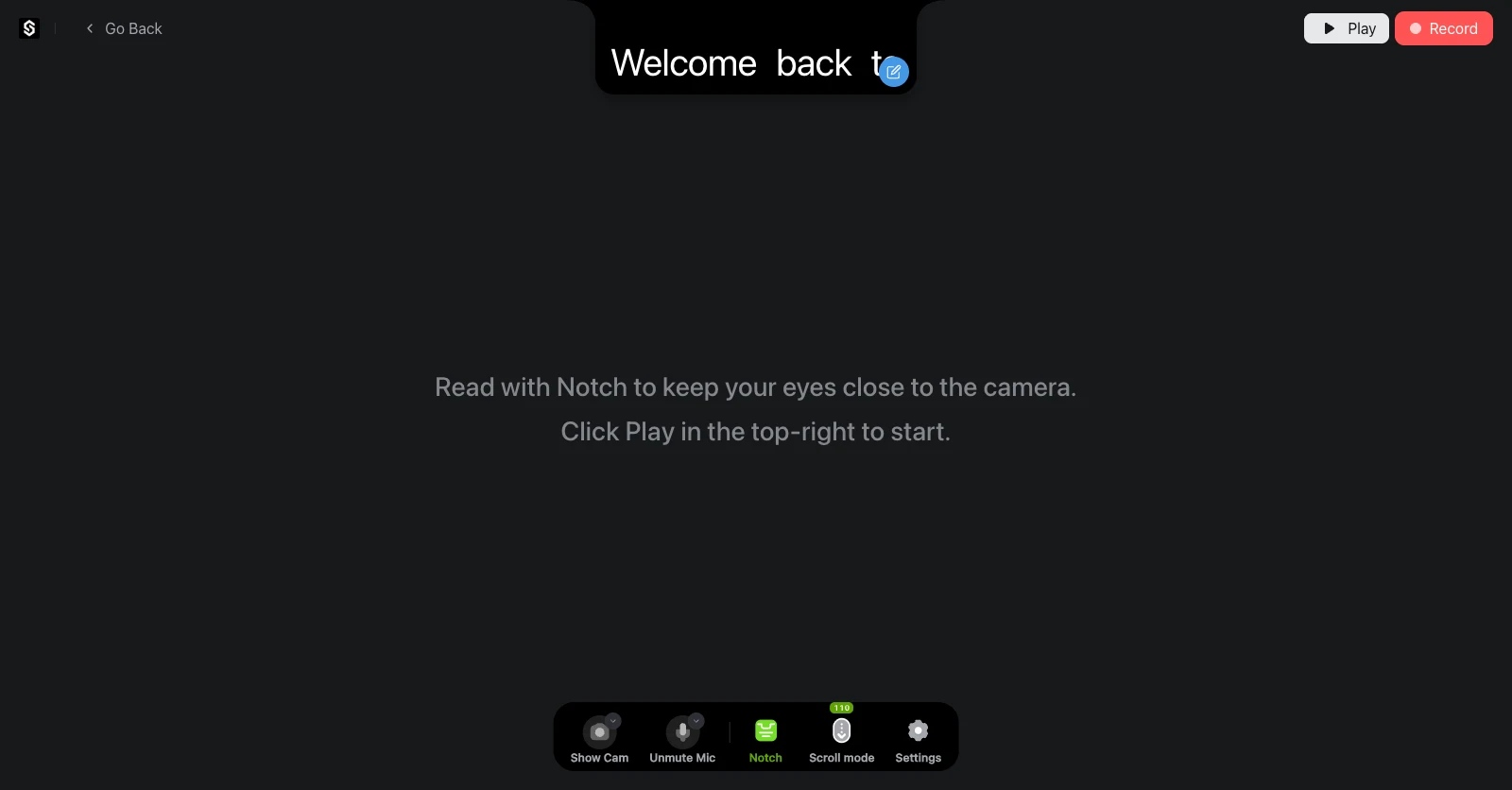
When you read from the middle of a laptop screen, viewers can see your eyes drop. Notch mode fixes that by shrinking the script into a narrow strip that sits just below the webcam.
- Press Notch in the bottom toolbar. A short reading window appears near the top of the screen.
- Move it so it sits directly under your camera, and size it to show two or three lines.
- Press Edit script inside the strip to fix a word on the spot.
- Want the rest of the screen out of the way? Turn on Fullscreen when enabling Notch in Settings.
For more on eye line, see where to look when speaking on camera.
Step 6: Use your phone as a remote (optional)
Filming alone from a few steps back, or with the screen behind glass? Pair your phone so you never have to reach for the keyboard. Open the remote option in the teleprompter and scan the QR code with your phone's camera. Nothing needs to be installed on the phone. Once paired, it can:
- play and pause the script,
- nudge the fixed scroll speed up or down,
- jump ahead or back to another part of the script,
- start and stop recording.
Reading through a beamsplitter rig? Press Mirror so the text reads the right way round in the glass.
Step 7: Record, watch it back, keep it
- Press Record. If Countdown is on, you get a short count before the camera starts.
- Read to the lens. The scroll mode you picked keeps the text moving.
- Press Record again to stop.
- On the Your take screen, play the recording back. Choose Record again to try another, or keep it and press Export to download the file.
Every take is stored on your device, not uploaded to our servers, and it never has a watermark.
Step 8: Find scripts and takes later in Workspaces
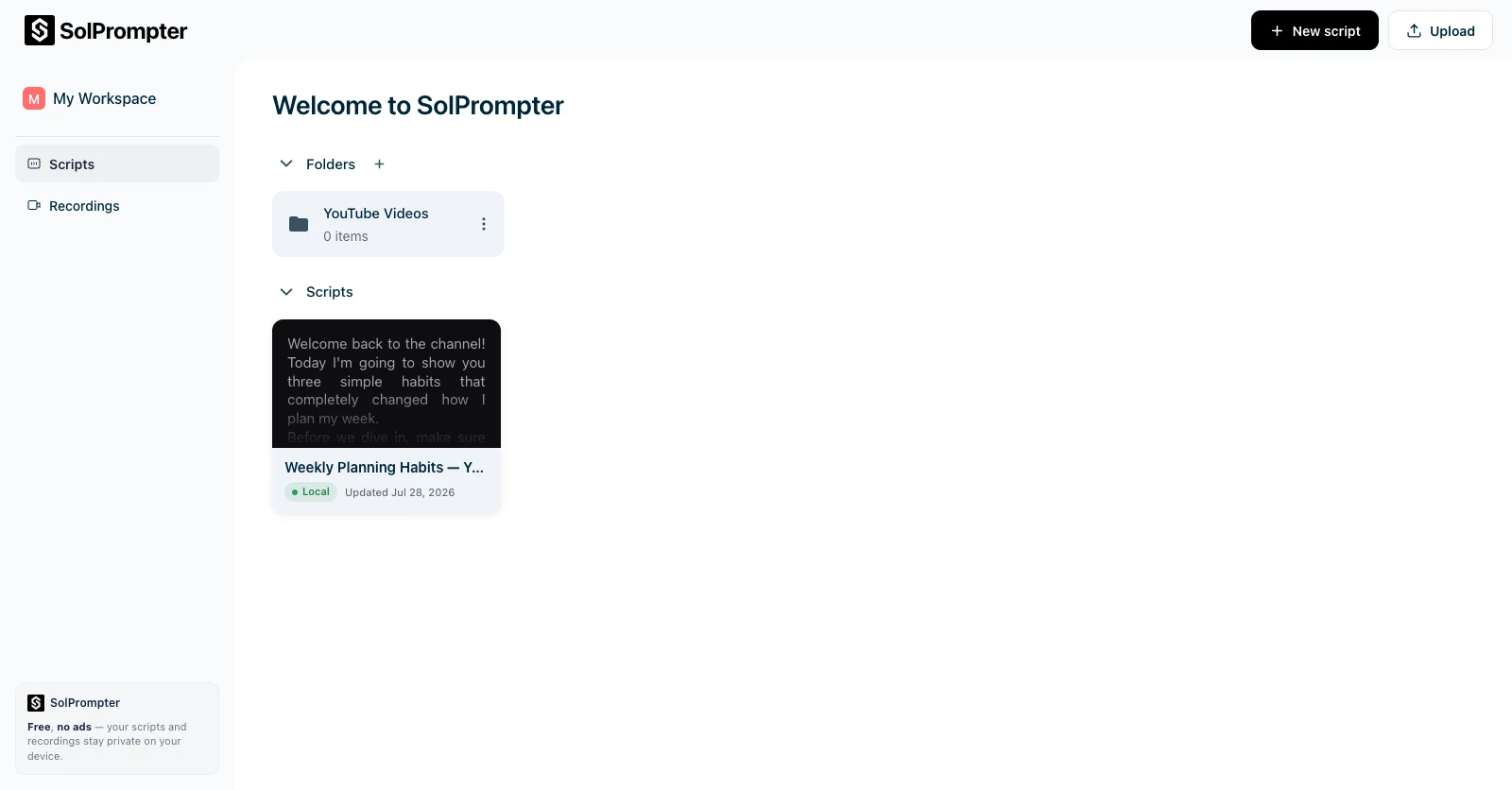
Workspaces is your library. It lists every script and recording saved in this browser.
- Scripts: press Open to load one back into the teleprompter with its reading settings, or use New script and Upload to add more.
- Folders: press New folder to group scripts by project or channel, then Rename or Delete as needed.
- Recordings: preview any take, Download it, or select several and use Export selected to get them as a single ZIP.
- Backups: Export a script to save a copy as a file you can import again later.
Because everything lives in your browser, clearing site data removes it. Export anything you cannot afford to lose.
Keyboard shortcuts
On a computer, these keys keep your hands off the mouse. You can also see them under Shortcuts in Settings.
- Space: play or pause.
- Left and right arrows: slower or faster.
- Up and down arrows: scroll back or forward.
- Enter: jump to the next paragraph.
- Ctrl+B, Ctrl+I, Ctrl+U: bold, italic, underline.
A one-minute check before every take
- Record five seconds and play it back. Check framing, light on your face and audio level before the real take.
- Make sure the line you are reading sits as close to the lens as you can get it.
- Break long sentences into short lines, and add a blank line wherever you want to breathe.
- Read the first paragraph out loud once before you press Record.
Sounding like you are reading is the most common problem on a first take. See how to read a teleprompter naturally for delivery tips.
If something is not working
- "Camera access is blocked": click the lock or info icon at the left of the address bar, allow Camera and Microphone, then reload the page. The teleprompter shows the exact steps for your browser.
- "Your camera or microphone is being used by another app": close the video call or camera app that has it, then try again.
- "The selected camera settings aren't supported": choose a lower resolution in Settings.
- Auto scroll does not move: voice-following depends on your browser's speech recognition. If you see "Voice matching retrying", the text keeps moving on a timer until recognition comes back. If your browser does not support it, use Word per minute or Scroll time.
- Text reads backwards: Mirror is on. Turn it off unless you are reading through glass.
That is the whole session. Paste a script, turn on your camera and record your first take. More walkthroughs are in our teleprompter guides.